Putting an iPhone Under Control via the Station
The station app on the Mac does almost everything itself — the operator connects the phone and follows the on-screen prompts
Organization: TSDQWISH, MChJ · Time: 5–8 minutes per device
Put under control via the station
The station finds the device over the cable by itself, checks readiness, walks through the Apple Configurator wizard, and tracks every step. No need to type in the serial number by hand.
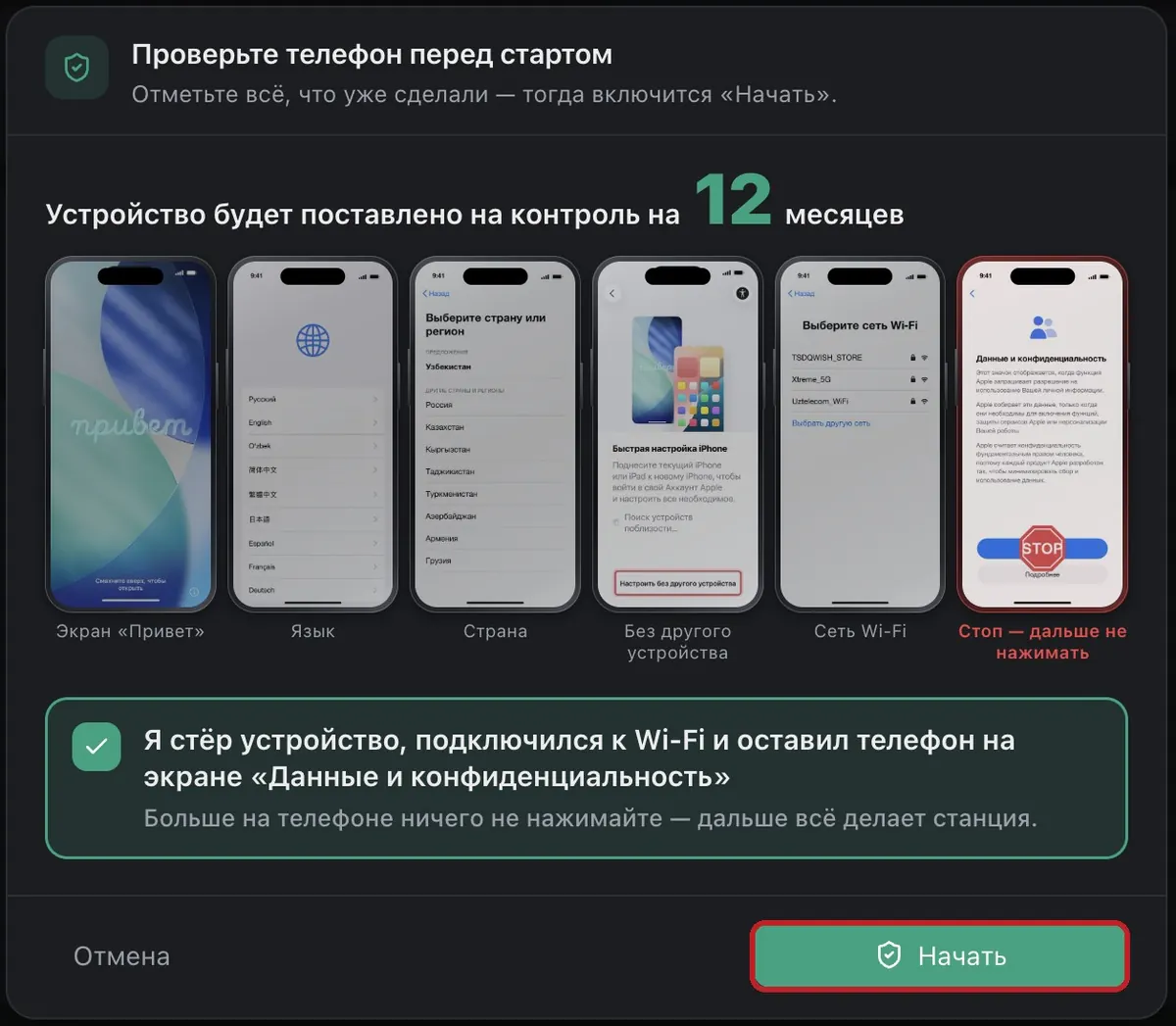
Erase the iPhone and get to the “Data & Privacy” screen
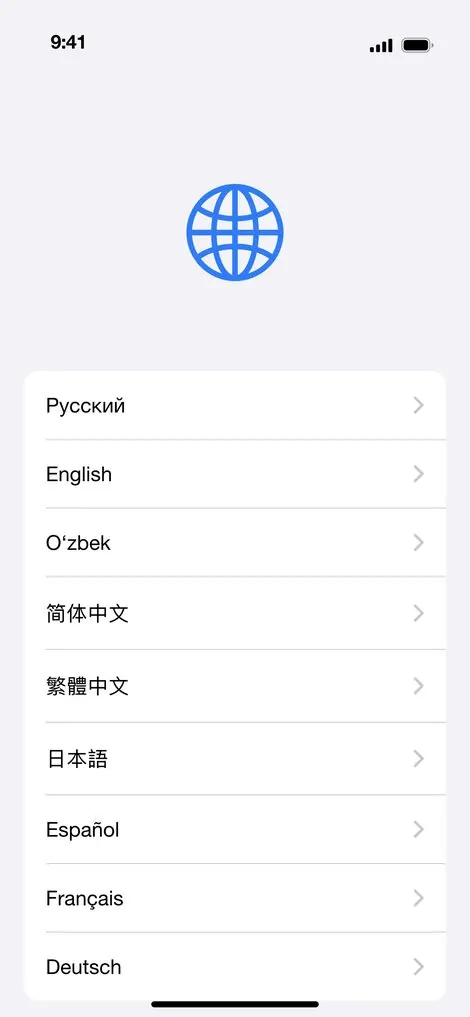
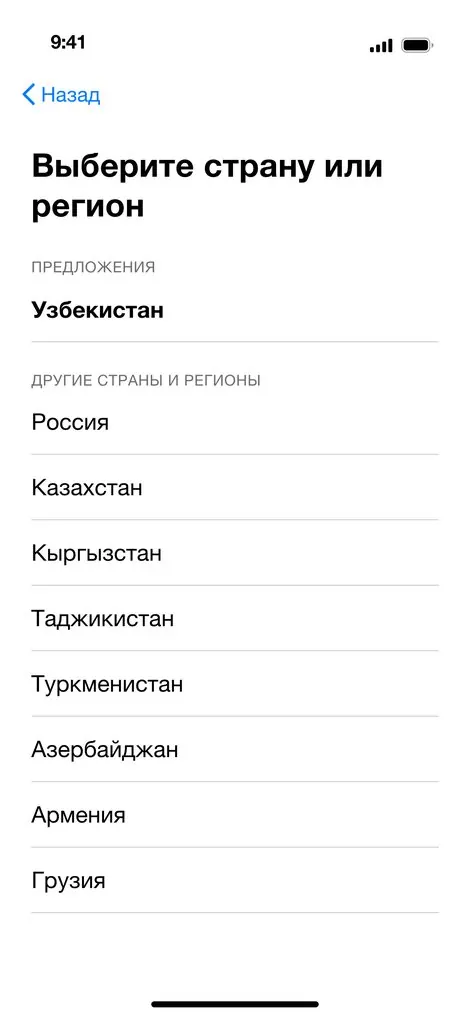
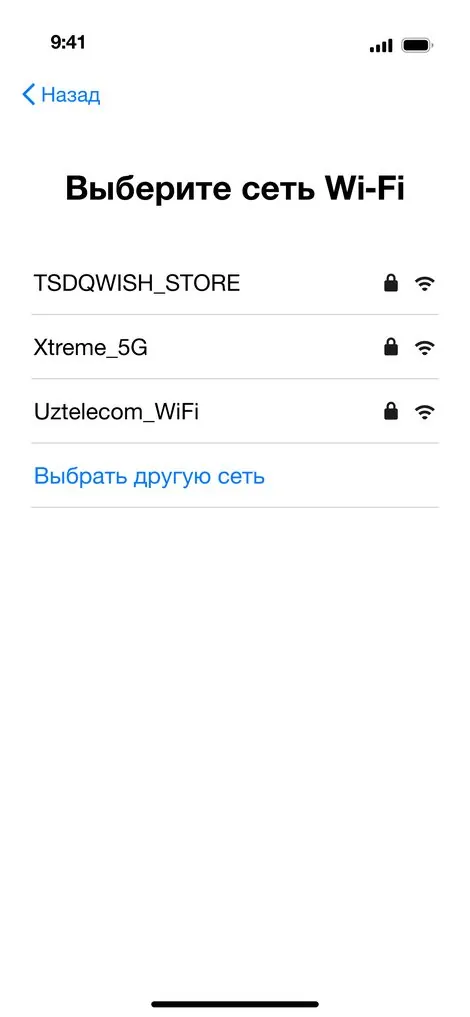
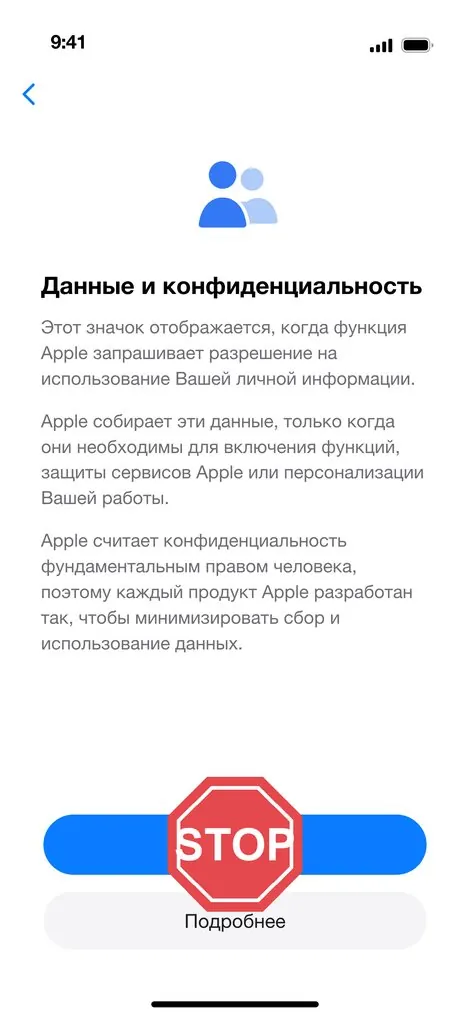
IPHONE · IN HANDIf the phone is used — first erase it completely: Settings → General → Transfer or Reset iPhone → Erase All Content and Settings (no need to erase a new phone). Then go through the screens in order: language → region → Wi-Fi. On the “Data & Privacy” screen — STOP! Don't tap anything — leave the phone on this screen and move to the next step.

Start the enrollment
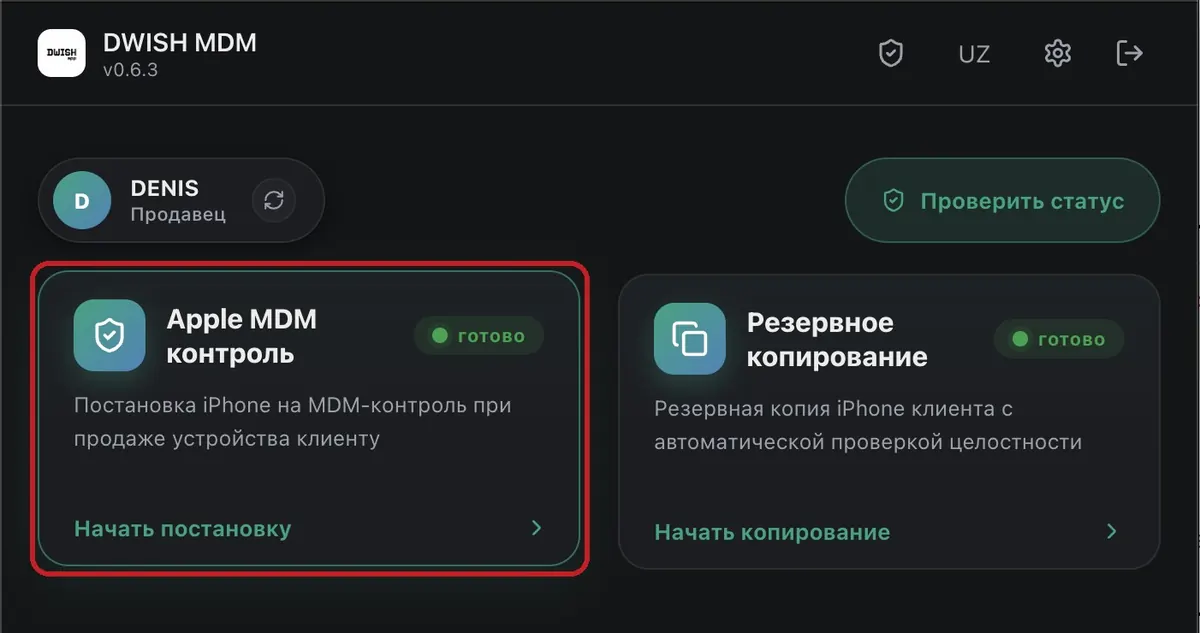
MAC · DWISH STATIONConnect the iPhone to the MacBook with a cable and open the DWISH station. There are two blocks on the home screen — choose “Apple MDM Control”.
Choose the term and confirm
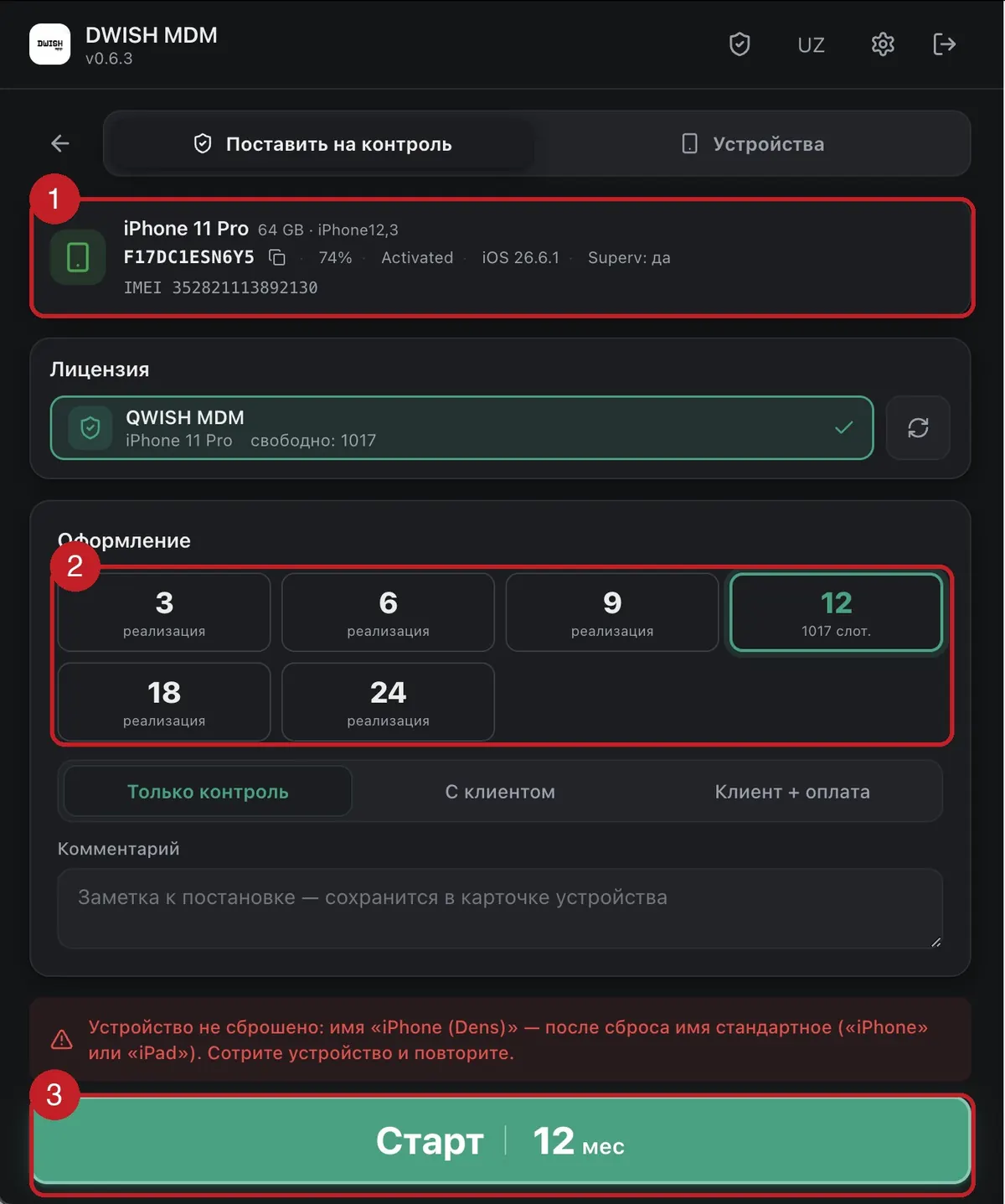
MAC · DWISH STATIONThe station will detect the connected phone automatically — check that it's the right one (1). Choose the installment term (2) and press “Start” (3). Then in the checklist tick “I erased the device…” — only if you actually completed step 1 — and press “Begin”.
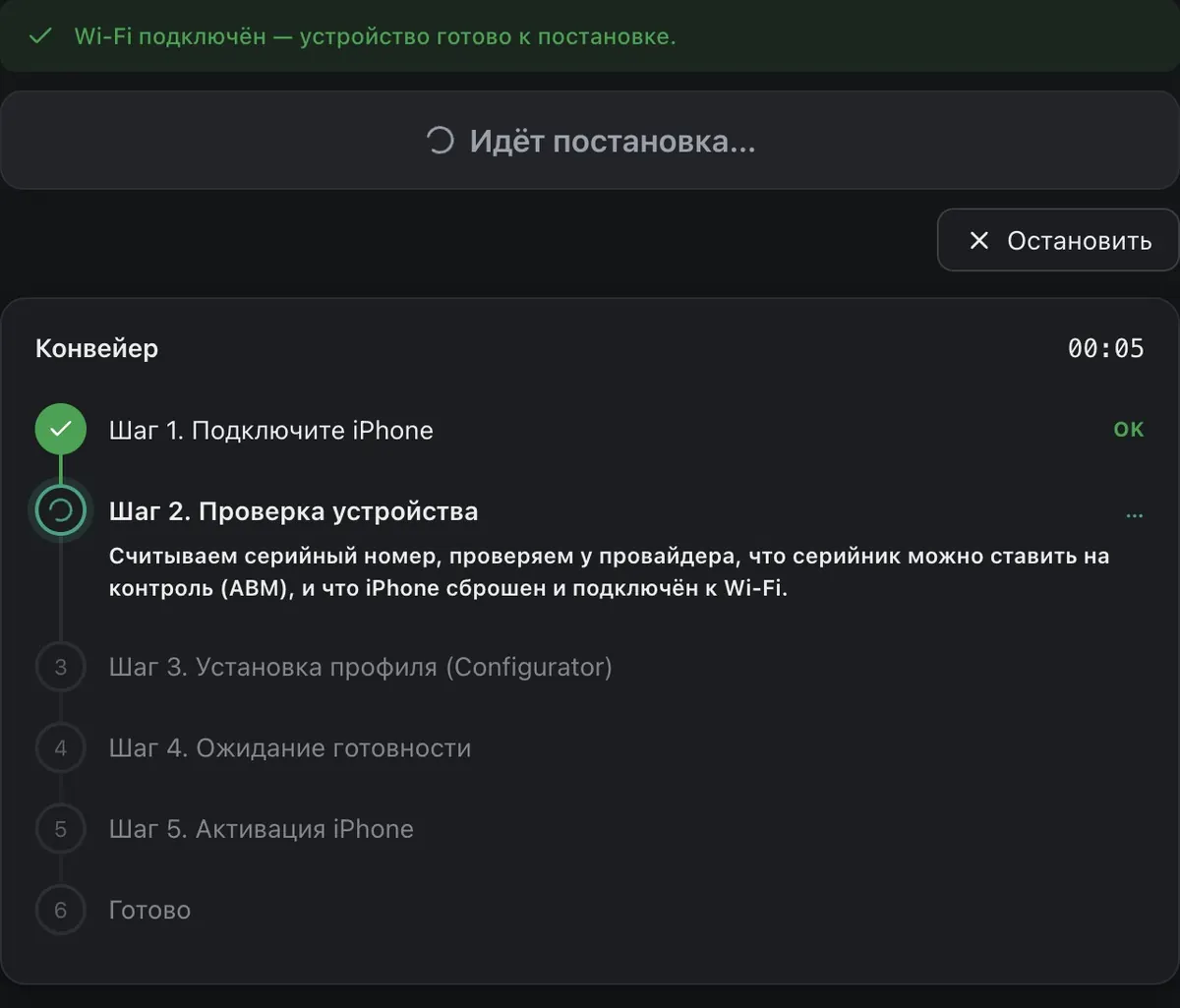
The pipeline takes over from here
MAC · DWISH STATIONThe station goes through 6 steps on its own and shows what to do at each one — progress is visible in the pipeline and the log. After the device check, Apple Configurator will launch — see the next step for what to do there.
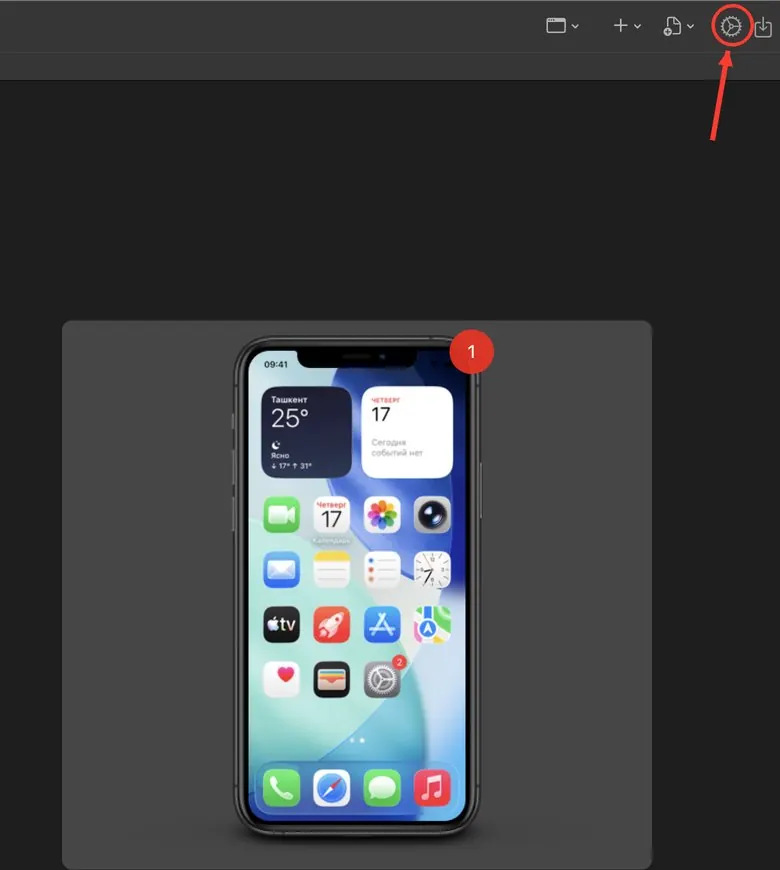
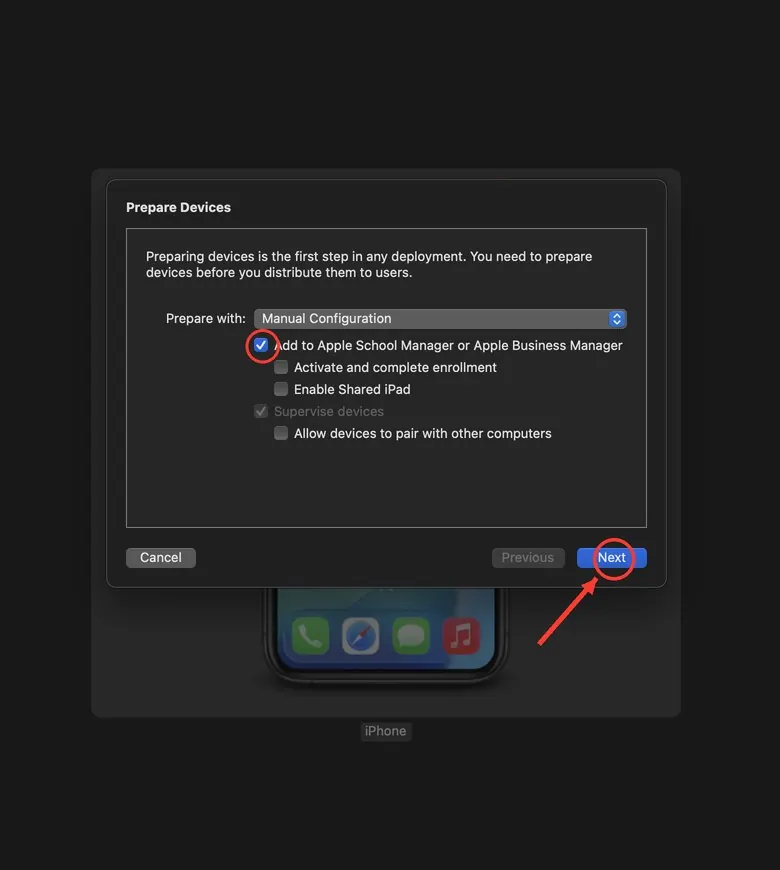
Apple Configurator wizard
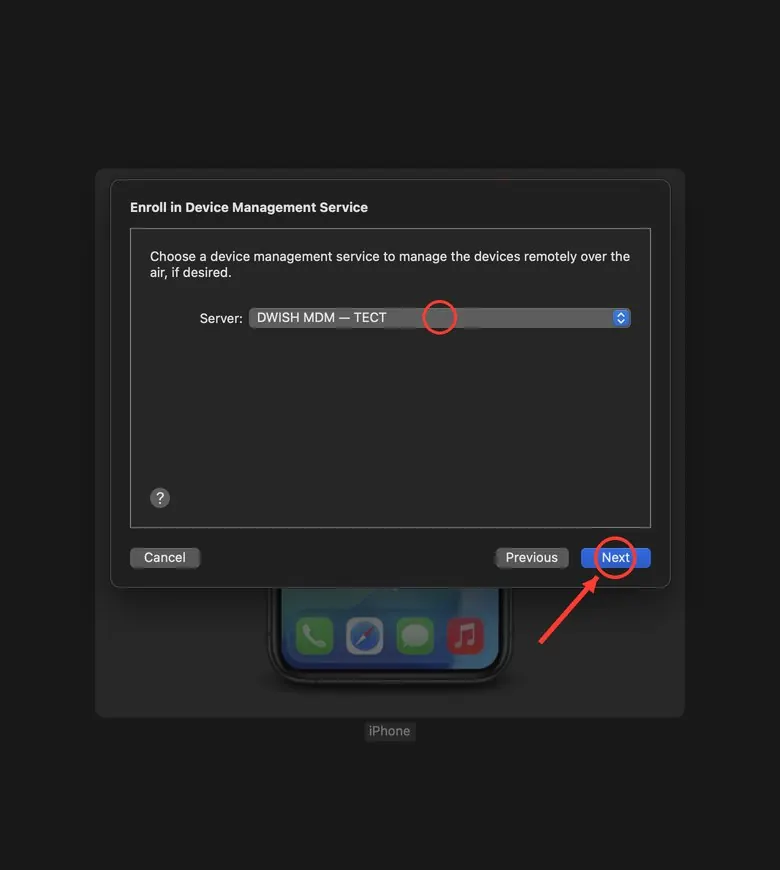
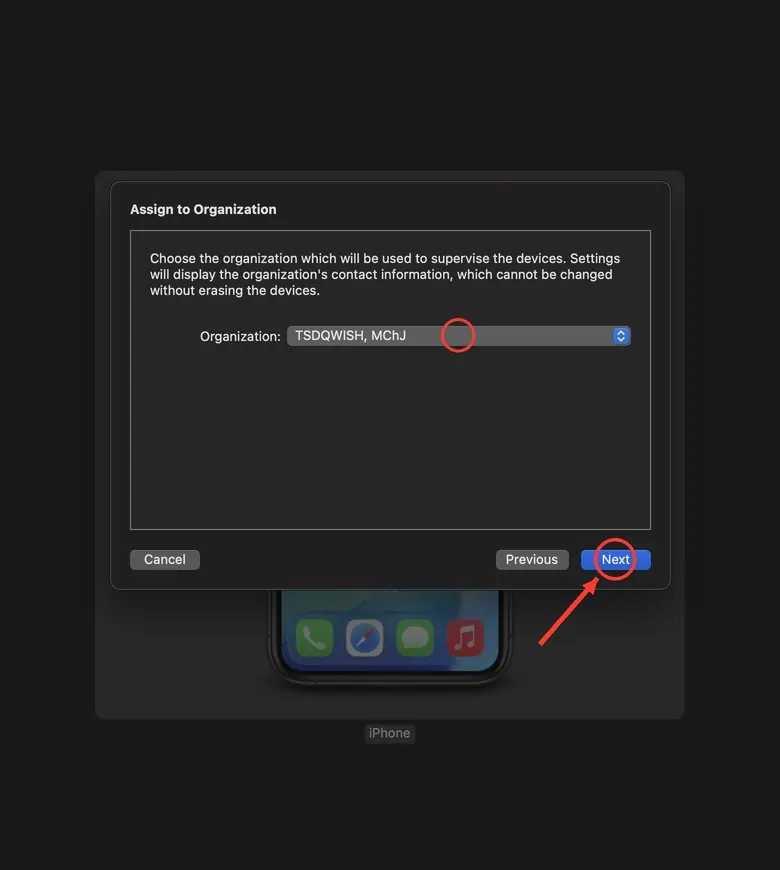
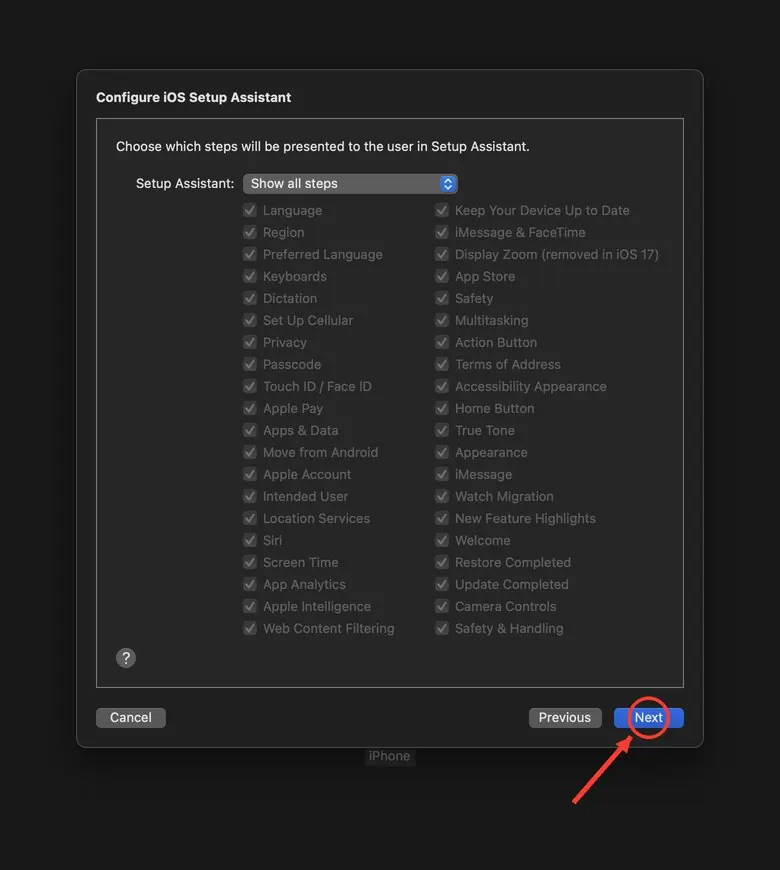
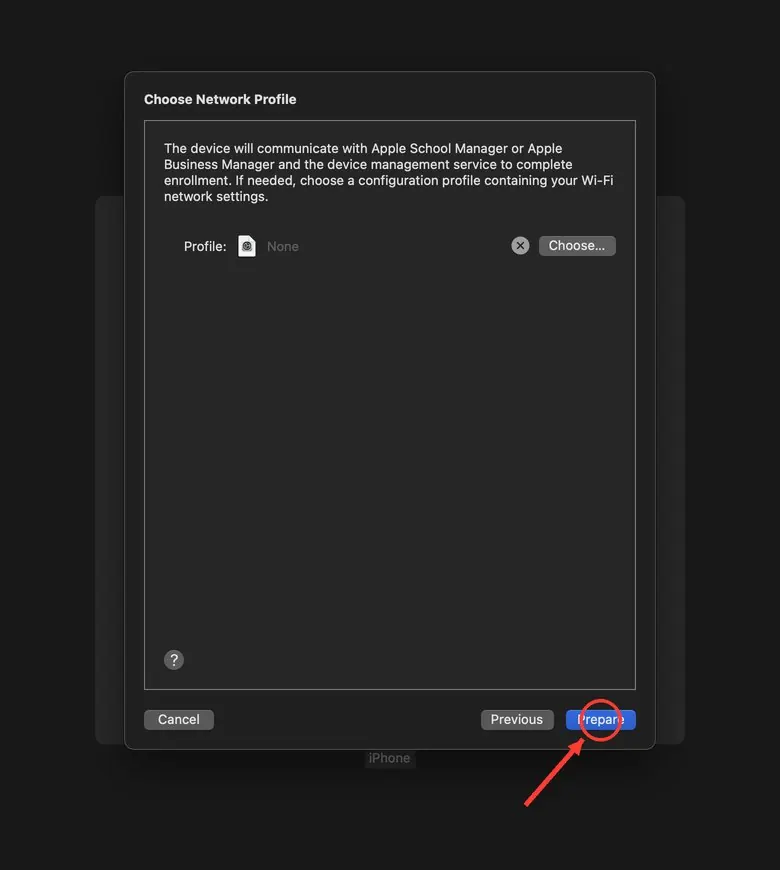
MAC · DWISH STATIONThe station will open the “Configurator is installing the profile” window and, if auto-run is enabled, will click through the wizard itself. If doing it manually: in Apple Configurator select the iPhone → gear icon → Prepare → Manual Configuration + check “Add to Apple Business Manager” + MDM server → Next in every window → Prepare (windows below). At the end the phone will erase itself — the message “connection to the phone was lost” is normal, just wait. Once the wizard finishes — tick the “Configurator finished the process” checkbox.
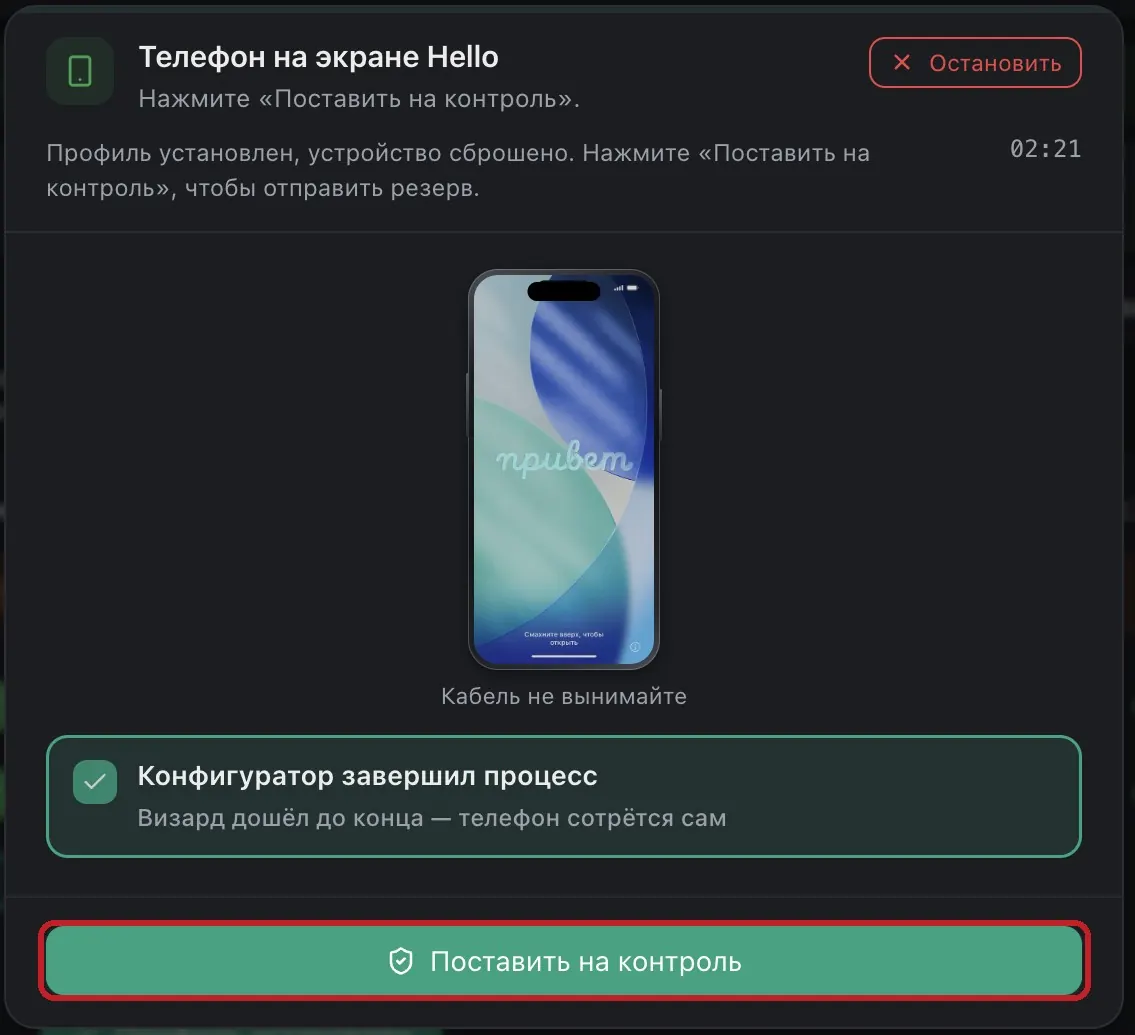
Phone shows “Hello” — press “Put Under Control”
MAC · DWISH STATIONThe phone will erase, restart, and return to the “Hello” screen. The station will confirm this, and the “Put Under Control” button will become active — press it. Do not unplug the cable.
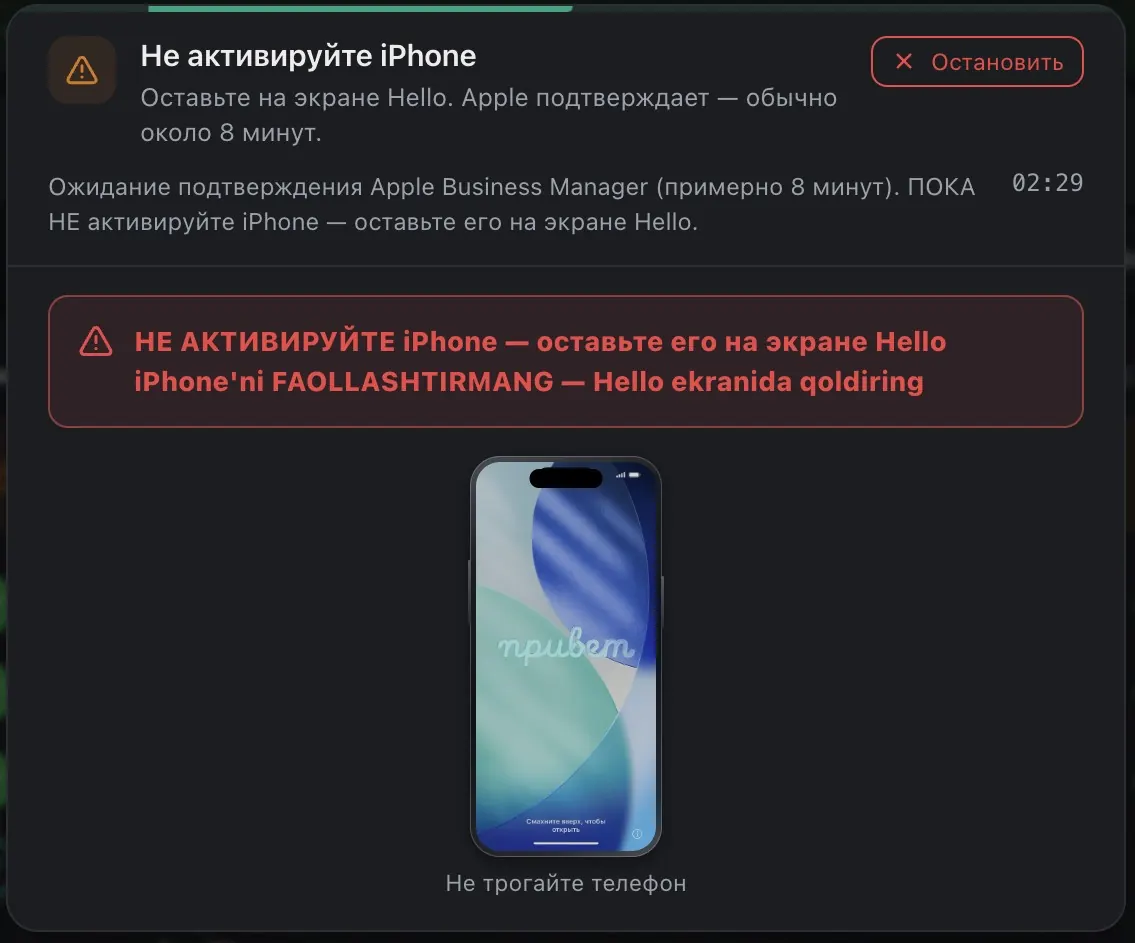
Wait for Apple's confirmation — do NOT touch the phone
MAC · DWISH STATIONThe station sent the enrollment request and is waiting for confirmation from Apple Business Manager — usually about 8 minutes. While waiting, do NOT activate the iPhone — it must stay on the “Hello” screen.
The station allowed activation
MAC · DWISH STATIONOnce Apple confirms, the station will show this screen — meaning the phone can now be activated. Move to the next step.
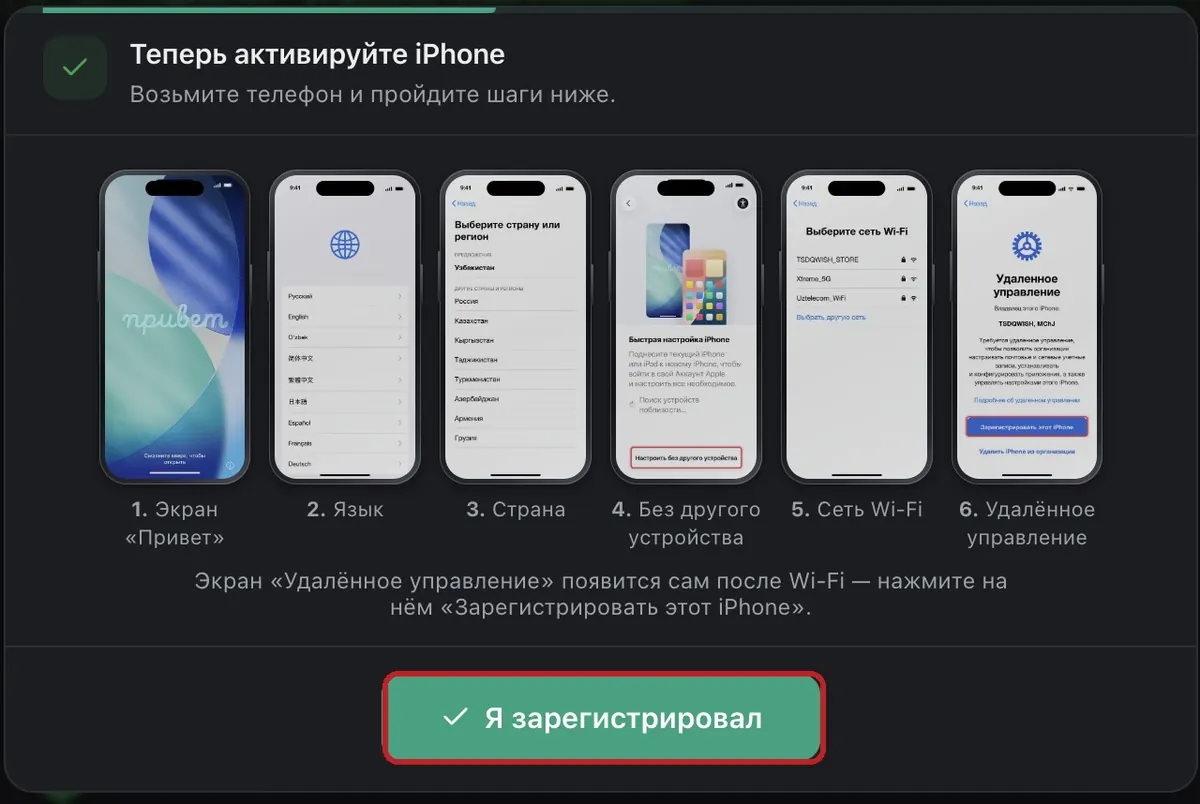
Activate the iPhone
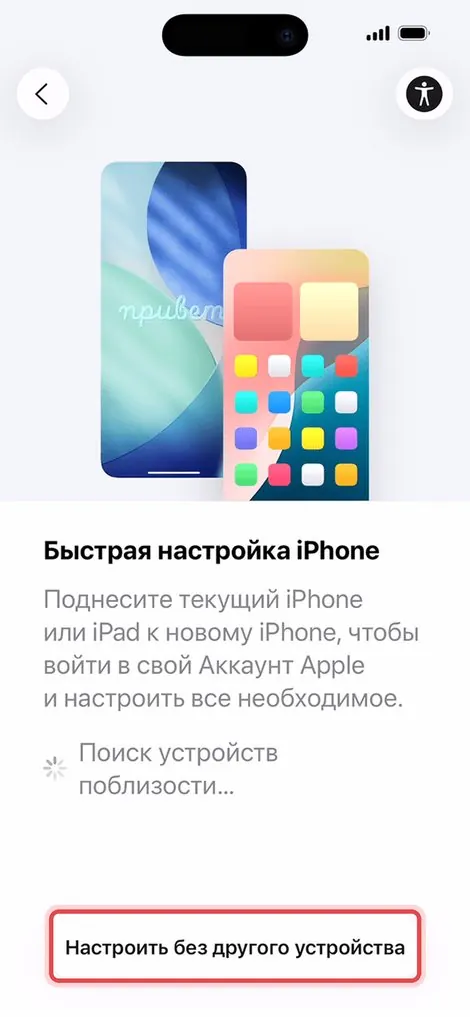
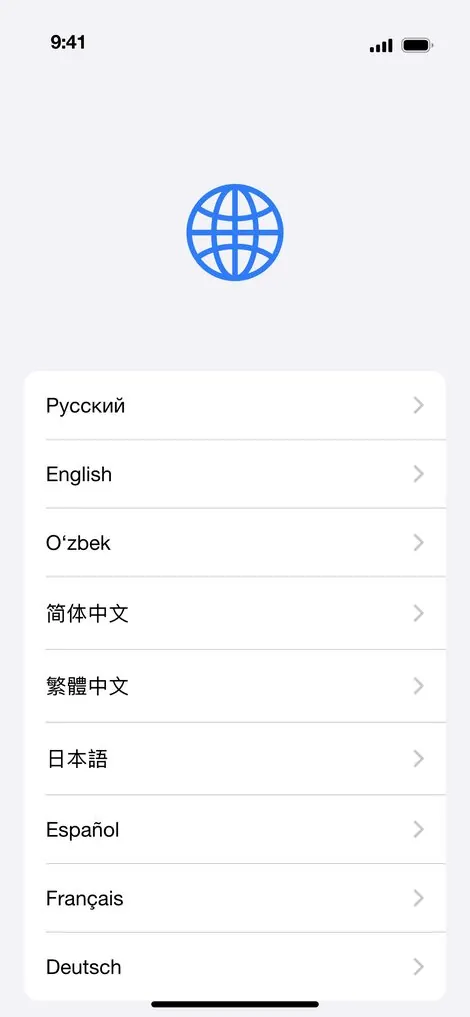
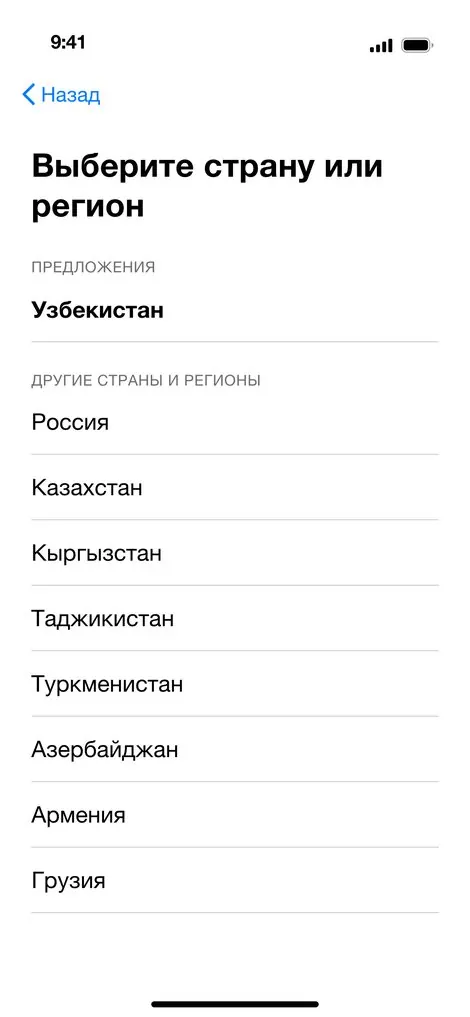
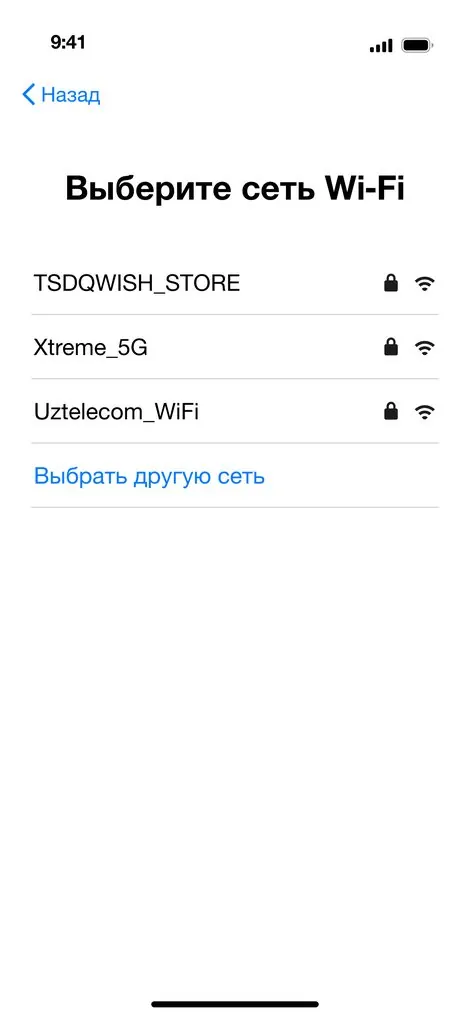
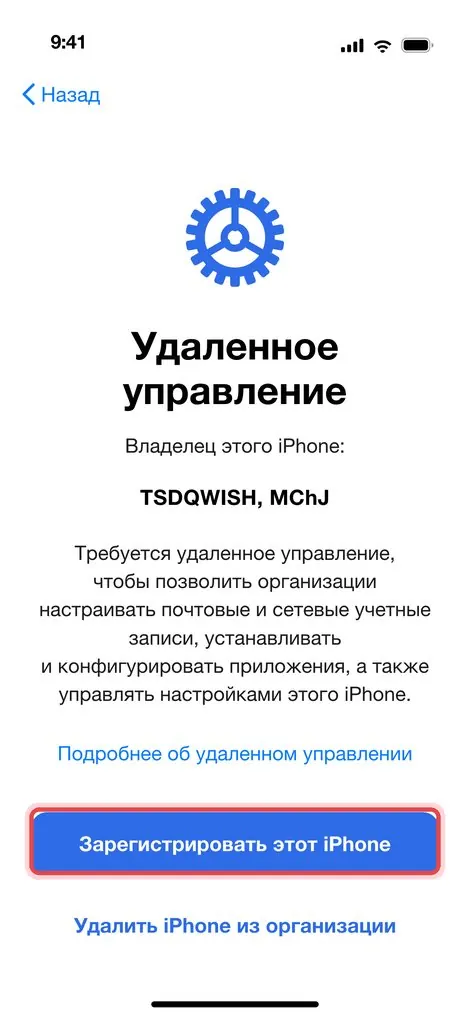
IPHONE · IN HANDTake the phone and go through the screens: language → country → “Set Up Without Another Device” → Wi-Fi. The “Remote Management” screen will appear on its own — press “Enroll This iPhone” on it. Then on the station press “I Enrolled It”.

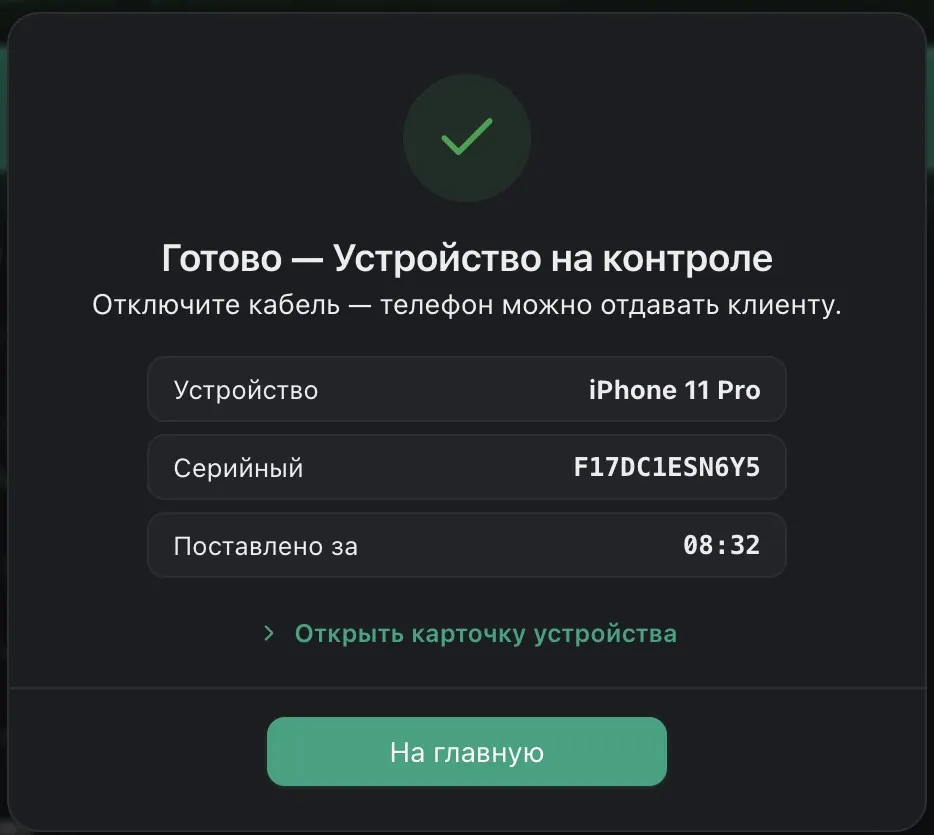
Done — the device is under control
MAC · DWISH STATIONThe station will show a green confirmation with the serial number. Unplug the cable — the phone can be handed to the customer.